Your IT provider says "we can sort that remotely", and you are not quite sure what that means. Remote IT support for small business is simple to define: an engineer fixes your computers, accounts and systems over a secure connection, without travelling to you. The harder questions are whether it is safe to let someone onto a screen, and what happens when the fault is a dead switch in the cupboard. This guide covers what remote IT support handles well, how a secure session works, which jobs still need a visit, and what to ask any UK provider before you sign.
How remote IT support works, step by step
One ticket, start to finish, as remote IT support for a small business should run.
- You report the problem. By phone, email or a portal, and every route should create a ticket so nothing relies on memory. This is how a helpdesk ticket is tracked.
- The engineer checks the data first. On a managed device, monitoring already shows disk space, update status, recent crashes and whether the backup ran. The cause is often visible before anyone touches your screen.
- If they need your screen, you are asked. You accept a session request, or the provider uses a management agent already approved on company devices.
- You watch while they work. You see the pointer move, can ask questions, and can end the session if something looks wrong.
- The session closes and is recorded. The ticket notes what was found and what was changed.
There are two kinds of remote work. Attended sessions are the ones above: you are there and you agree to the connection. Unattended management runs in the background on managed devices: updates, settings, scripts and app installs. Microsoft 365 Business Premium includes Microsoft Intune Plan 1, which lets an administrator restart, sync, lock or wipe a managed device, deploy apps and set update policies. Microsoft's own remote control tool, Remote Help, is not part of that: Microsoft says it "requires a subscription in addition to Microsoft Intune Plan 1 or Plan 2".
What remote support fixes well
Most small office problems are not physical. They live in accounts, software and settings, where remote support is strongest.
Accounts, email and Microsoft 365
Forgotten passwords, a new phone that needs the authenticator app again, a shared mailbox missing from Outlook, a SharePoint folder shared too widely. Joiners and leavers too: a new starter's account and licence ready for their first day, and a leaver's access removed when they go. None of it needs anyone at your desk, but it does need someone managing your Microsoft 365 accounts and licences properly, not a shared admin password on a sticky note.
Software, updates and patching
Installs, crashing applications, and keeping Windows and Office current. Updates go to every managed device at once rather than being chased one laptop at a time, with patching handled centrally and reported. Under the Cyber Essentials requirements that apply from late April 2026, IASME says updates rated high risk or critical must be "installed within 14 days of release", and missing that is now an automatic fail.
Monitoring, backups and security alerts
This is the part nobody sees. Agents on each device, plus checks on backups and connections, raise alerts for a disk filling up, a backup that did not finish, or a login that looks wrong. With 24/7 monitoring and alerts acted on in UK business hours, many problems are spotted before anyone rings. Good monitoring includes test restoring files now and then, because a backup nobody has restored is a hope rather than a plan. Here is how remote monitoring tools work, and how alerts feed into security monitoring and response.
What remote support cannot fix
No remote tool can replace a part. An honest provider will tell you these limits before you sign.
- Failed hardware. A dead laptop, a failed disk or a cracked screen needs the device in someone's hands, or a replacement shipped and set up.
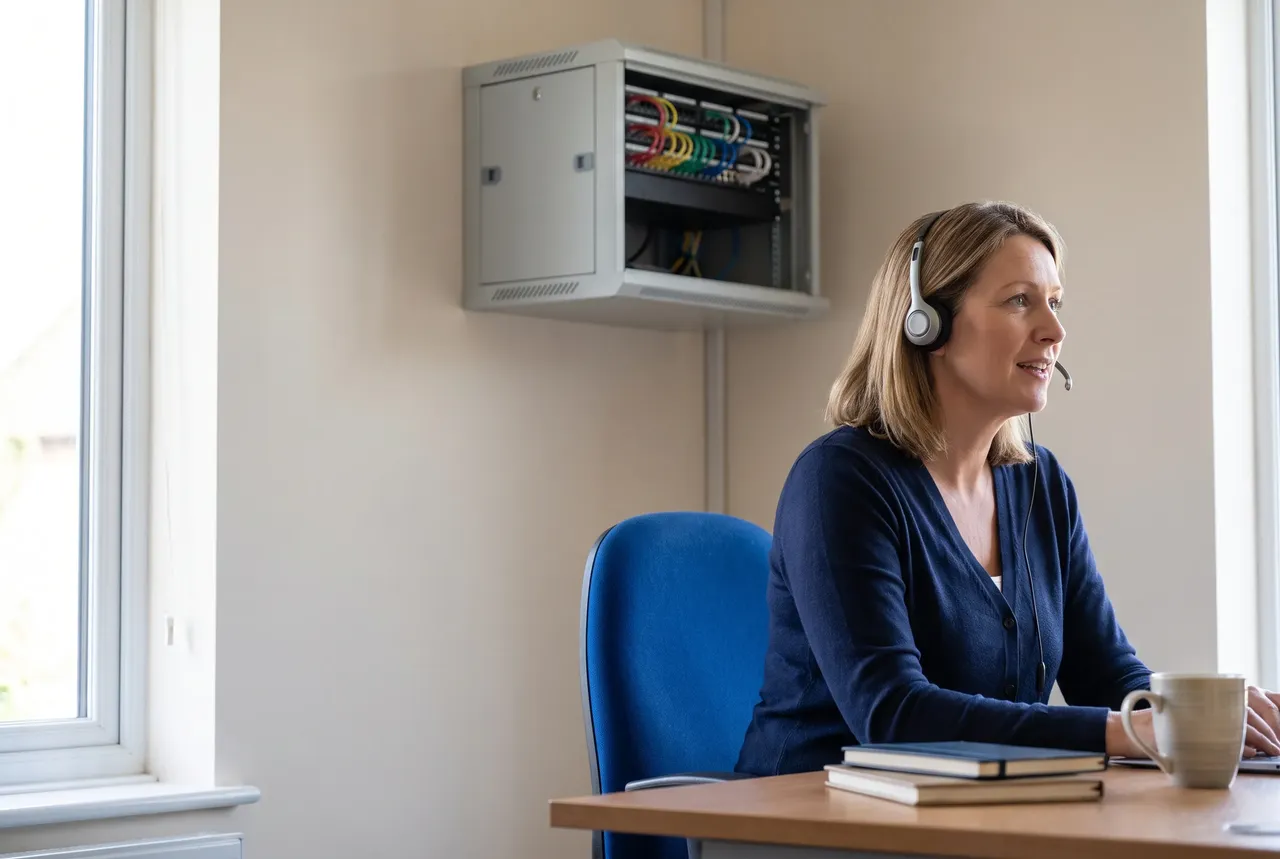
- Cabling and network equipment. A failed switch, a damaged cable, a Wi-Fi access point in the wrong place, or an office move.
- A site with no internet at all. The engineer can confirm the fault is on the line and chase your line provider, but cannot repair the carrier's line.
- A user with no working device. If nothing will start, there is nothing to connect to.
What matters is who deals with each: which jobs the provider attends, and which it arranges through someone else.
Is remote IT support secure?
It can be. The risk is rarely remote support itself; it is how the access is set up.
Secure support tools versus open Remote Desktop
Legitimate remote support uses a dedicated, encrypted tool that the provider controls and can log. That is a different thing from leaving Windows Remote Desktop open to the internet for anyone to try. NCSC guidance on ransomware says it "is increasingly being deployed by attackers who have gained access remotely via exposed services such as Remote Desktop Protocol (RDP), or unpatched remote access devices", and advises: "disable RDP if it's not needed". If an old setup still exposes it, fix that first. Here is why exposed Remote Desktop is risky, and how a business VPN works as one alternative.
Who can connect, and how you know
From any provider, expect multi factor authentication on every account it uses to reach your systems, named accounts for each engineer rather than a shared login, a request you accept before anyone sees your screen, logged sessions, and access removed when the relationship ends.
If you hold Cyber Essentials, or want it, this is in scope too. The v3.3 requirements cover accounts used by "a supplier, contractor or Managed Service Provider (MSP)", and IASME says organisations that fail to implement MFA for cloud services "will now automatically fail the assessment".
Your data and UK GDPR
An IT support provider with access to your systems is usually a processor under UK GDPR; the ICO names IT support companies as an example. The ICO says "there must be a written contract that binds the processor to the controller", covering terms such as acting only on your documented instructions, confidentiality, security and what happens at the end of the contract. Ask to see it before anyone gets access.
When someone needs to come on site
Remote first, on site when needed, is a working model rather than a slogan. Most issues are resolved remotely because that is quicker for the person with the problem. Visits are kept for work that needs hands on hardware:
- setting up a new office, or moving one
- cabling, switches, routers, Wi-Fi access points and Wi-Fi surveys
- hardware swaps where shipping a device is not practical
- a security incident where devices need to be physically isolated
- training, for teams that prefer it in person
The question every buyer should put to a remote provider is geographic: where do you physically cover, and what happens elsewhere? Our answer is on site visits across Dorset, with clients elsewhere in the UK supported remotely. Whoever you choose, get that answer in writing before you need it.
Remote provider or local provider? Questions to ask
Distance matters less than it used to for most support, and more for hardware and office work. The NCSC's guidance on choosing a managed service provider adds: "Check with your MSP how they manage access into your systems and how those connections are secured."
- Where is the helpdesk, and who answers? A good answer names a UK team and explains how tickets are logged.
- What is monitored, and when are alerts acted on? Listen for specifics, and for who reviews the alerts.
- Which jobs need a visit, and how are visits arranged? A good provider has a list, and a plain answer for places it does not cover.
- How is remote access secured and logged? Expect MFA, named accounts and least privilege, which the NCSC describes as "giving your MSP only the permissions needed to do the job".
- Who owns the admin accounts, and what happens to access if we leave? You should own them, and the provider's access should end cleanly. Check the exit and handover terms before signing.
- How are response commitments written down? In the contract, by priority, in plain words. Here is how response commitments are written.
What we do
HGC is based nearby in Dorchester, Dorset, and supports small businesses across the UK: remote first, with on-site visits across Dorset when needed, and clients elsewhere in the UK supported remotely. We provide 24/7 monitoring with human response in UK business hours. We are a Microsoft Cloud Solution Provider (CSP) partner. We hold Cyber Essentials Plus, which is independently audited, so MFA, least privilege and patched devices are controls we run on ourselves. There are no long-term contracts. See what is included in our managed IT support for UK small businesses.
Want an honest view of what would work for your office? Book a free IT review.
Frequently asked questions
How does remote IT support work?
An engineer connects to your computer or systems over a secure, encrypted connection, usually after you accept a session request. They can see your screen and fix the problem while you watch. Background updates and monitoring run on managed devices without interrupting you.
Is remote IT support safe?
It is when the provider uses a dedicated remote support tool, multi factor authentication on its own accounts, logged sessions and your consent for each attended session. Leaving Remote Desktop open to the internet is a different, riskier practice.
What can't be fixed with remote IT support?
Physical problems: failed hardware, cabling, network equipment, office moves and a site with no working internet connection at all. A remote engineer can diagnose these and arrange the fix, but someone needs to handle the equipment.
Do I still need on-site IT support?
Most small businesses need it occasionally rather than routinely. Remote support handles accounts, software, updates and monitoring; visits are for hardware, cabling, moves and installs. Ask any provider where they cover in person and how visits are arranged.