

The end of life dates for Windows Server are firm deadlines. When Microsoft stops sending out security updates, your business is left exposed. Key dates to watch are 12 January 2027 for Windows Server 2016, and 9 January 2029 for Windows Server 2019. Ignoring them isn't an option if you're serious about security and compliance.
What Windows Server End of Life Really Means for You

It helps to think of your server’s operating system like a castle protecting your company's most valuable assets. Microsoft's support lifecycle is essentially the schedule for the guards patrolling its walls. This lifecycle is split into two clear phases, and knowing the difference is vital for keeping your IT infrastructure safe and sound.
First up is Mainstream Support. This is the five-star treatment. During this period, your castle gets all the latest defensive gadgets, structural improvements (new features), and quick fixes for any minor cracks that appear (non-security bugs). The system is constantly being reinforced and improved.
After about five years, the server moves into Extended Support. The guards are still on duty, but they’re only focused on one thing: repelling direct attacks. They’ll patch any newly discovered security holes, but that’s it. No new features, no performance tweaks. Your castle is still secure, but it’s not getting any stronger or more modern.
The Real-World Impact of an EOL Server
Once Extended Support finishes, your server officially hits its End of Life (EOL). This isn't just a line in a product manual; it's a major business risk. At this point, the guards pack up and leave for good. The castle is left undefended against any new threats that emerge.
An unsupported server is a sitting duck. Cybercriminals actively hunt for these systems because they know any new vulnerability is a permanent, open door into your network.
This creates some serious headaches for any business:
- Massive Security Gaps: Without new security patches, your server becomes a prime target for ransomware, data theft, and other cyberattacks. Every new vulnerability discovered by hackers is a weapon they can use against you, forever.
- Compliance Failures: If you handle customer data, you're likely governed by regulations like GDPR. These frameworks demand you use supported software. Running an EOL server can lead to failed audits, hefty fines, and losing the trust of your clients.
- Operational Disruption: Sooner or later, new software and hardware will refuse to work with your old server OS. This stalls projects, disrupts workflows, and puts a handbrake on business growth.
Ultimately, ignoring windows server end of life dates is a massive gamble. The routine of applying security updates is a cornerstone of business continuity, as we explain in our guide on what is patch management. Planning ahead isn't just good IT practice—it's a fundamental business strategy.
Your Complete List of Windows Server End-of-Life Dates
Let's get straight to it. The first thing you need is a clear picture of the key deadlines. Guesswork isn't a strategy, so I've put together a simple reference table with the official end-of-life dates for the most common Windows Server versions.
Think of these dates as non-negotiable. You'll notice two important columns: Mainstream Support End Date and Extended Support End Date. Once Mainstream Support ends, you stop getting new features. But the real crunch comes after the Extended Support date – that’s when Microsoft stops releasing security updates altogether, leaving your server dangerously exposed.
Windows Server Support Lifecycle Dates
Find your current server on the list below to see exactly where you stand. I’ve ordered them from newest to oldest to make it easy to spot your version.
| Windows Server Version | Mainstream Support End Date | Extended Support End Date |
|---|---|---|
| Windows Server 2022 | 13 October 2026 | 14 October 2031 |
| Windows Server 2019 | 9 January 2024 | 9 January 2029 |
| Windows Server 2016 | 11 January 2022 | 12 January 2027 |
| Windows Server 2012 R2 | 9 October 2018 | 10 October 2023 |
| Windows Server 2012 | 9 October 2018 | 10 October 2023 |
As you can see, the clock has already run out for Windows Server 2012 and 2012 R2. Any business still running these is taking a massive security risk. Likewise, with Mainstream Support finished for both Server 2019 and 2016, they are now firmly on the countdown to their own end-of-life deadline.
How to Quickly Check Your Server Version
Not sure which version of Windows Server you’re running? Don't worry, you don't need any complex tools to find out. It only takes a moment.
Knowing your server's exact version and edition is fundamental. It’s like knowing the model and year of your car before you can order the right parts for a repair; without it, you're just guessing.
Here’s the easiest way to check:
- Log in to your server.
- Open the Start Menu.
- Type
winverand press Enter. - A small window will pop up showing you the exact Windows Server version and build number.
With that simple command, you have everything you need to cross-reference with the table above. Now that you've identified your windows server end of life dates, you can start putting a solid plan in place to keep your business secure and running smoothly.
What’s the Big Deal? The Real Dangers of an Unsupported Server

Knowing the Windows Server end-of-life dates is one thing, but really getting to grips with what happens after that date is what forces your hand. Let’s be clear: continuing to use a server after its Extended Support has ended isn’t a calculated risk. It’s leaving the door wide open for trouble.
Think of it like this: your unsupported server is a house with an old, faulty lock. It might look fine from the outside, but every burglar on the street knows the trick to opening it, and you can't get a new lock made. This is a perfect way to understand the three huge dangers you’re facing: major security holes, serious compliance failures, and crippling day-to-day operational problems.
Major Security Holes
The most immediate and frightening threat is the sudden stop of all security updates. Once Microsoft stops sending out patches, any new weakness discovered by cybercriminals becomes a permanent, unfixable back door into your network.
Cyber-attackers actively hunt for these unsupported systems because they are the lowest-hanging fruit. They know these servers are easy pickings, making them prime targets for ransomware, data breaches, and all sorts of malicious activity.
This isn’t just scaremongering. When extended support for Windows Server 2012 and 2012 R2 ended on 10 October 2023, UK businesses felt the impact. A follow-up analysis found that well into 2024, 25% of scanned UK enterprise networks still had these old servers running. This coincided with a 30% spike in ransomware attacks aimed squarely at unsupported systems.
Without that constant stream of security patches, your server’s defences get weaker by the day, leaving your business and customer data completely exposed. It’s crucial to know where those weak spots are, which is why understanding what is a vulnerability assessment is so vital for any business owner.
Serious Compliance Failures
For many businesses, keeping data safe isn't just good practice—it's the law. If your company handles any kind of sensitive information, you are bound by strict data protection regulations.
An End-of-Life server isn’t just an IT headache; it’s a boardroom-level problem. A single failed audit can lead to fines that are far, far higher than the cost of a planned upgrade.
Rules like the General Data Protection Regulation (GDPR) demand that businesses use the right technical measures to keep data secure. Using an old piece of software that no longer gets security updates is a textbook example of failing to do that.
Just think about the potential fallout:
- GDPR Fines: If you have a data breach linked to an unpatched EOL server, you could be fined up to 4% of your company's annual global turnover.
- PCI DSS Violations: If you take card payments, the Payment Card Industry Data Security Standard (PCI DSS) insists you maintain a secure network, which includes applying all vendor security patches. An EOL server means you’re instantly non-compliant.
- Losing Certifications: Failing an audit can mean losing key industry certifications, which can seriously damage your reputation and even stop you from operating in certain markets.
The risk of non-compliance is a minefield of financial and reputational damage. It can shatter the trust you’ve built with your customers and lead to serious legal trouble. It's a risk no business can afford to take.
Crippling Operational Headaches
Even if you manage to dodge the security and compliance bullets, running an unsupported server creates a snowball of operational issues that can slowly grind your business to a halt. The world of technology moves forward, even if your server is stuck in the past.
New software, especially the critical tools you rely on every day, is built for modern operating systems. Sooner or later, you'll find that a vital application you need simply won't install or run properly on your outdated server.
This throws a spanner in the works in so many ways:
- Software Incompatibility: You might be unable to upgrade essential software for your accounts, CRM, or other core functions, leaving your team stuck with slow, inefficient tools.
- Poor Performance: Old operating systems aren't built for modern hardware or today's workloads. This leads to sluggish performance, system crashes, and more downtime—all of which hit your team's productivity and your customers' experience.
- No Vendor Support: It’s not just Microsoft. The companies that make your other software will also stop supporting their products on an EOL operating system. When something goes wrong, you’ll be on your own.
- Massive Emergency Costs: When that unsupported server finally gives up, the cost of emergency support and trying to recover your data can be astronomical. You'll be forced to pay a premium for specialists, with absolutely no guarantee they can fix the problem.
At the end of the day, clinging to an old server is a false economy. The money you think you’re saving by delaying an upgrade is quickly wiped out by the rising costs of inefficiency, security breaches, and the expensive, inevitable system failure.
Your Migration Plan for Windows Server 2016
If your business is still running on Windows Server 2016, there's a date you need to circle on your calendar in bright red ink: 12th of January 2027. That’s the day Microsoft officially ends all extended support. While it might feel like a long way off, it's a hard deadline that demands a clear plan of action, and waiting until the last minute is simply asking for trouble.
For many UK IT leaders, this should already be on the radar. Mainstream support for Server 2016 actually ended way back on 11 January 2022, which means your system has only been receiving security patches since then. A 2024 analysis revealed that a staggering 35% of UK mid-sized enterprises were still using Server 2016, putting them on a collision course with major security vulnerabilities. You can read more on the financial and regulatory risks in this detailed overview from Primaryt.
Ignoring this deadline exposes your business to a whole host of problems that are entirely avoidable. A planned migration lets you manage budgets, schedule resources without causing chaos, and properly test your new setup. A last-minute scramble, on the other hand, almost always results in expensive mistakes, rushed decisions, and painful downtime.
Why Planning Now Is a Business Imperative
Kicking off your migration planning today is one of the smartest moves you can make for your IT infrastructure. It turns what could be a frantic, high-stress project into a controlled, phased upgrade that actually supports your business goals.
A proper plan gives you the breathing room to really assess what you have. You can figure out which applications are business-critical, what data needs to be moved, and how a new system could make things run more smoothly. It’s also the perfect chance to modernise. For example, you could explore how a newer server environment can simplify your entire setup, a key benefit we discuss in our guide on what is server virtualization.
This forward-thinking approach gives you several big wins:
- Budgetary Control: A planned migration can be built into your annual budget, preventing a sudden, unwelcome hit to your finances.
- Resource Allocation: You can schedule the work for your IT team or external partners during less busy times, keeping disruption to a minimum.
- Thorough Testing: Plenty of time means you can test all your applications and workflows on the new platform, making sure the switch is seamless for your team.
The Costly Trap of Extended Security Updates
You might hear about Extended Security Updates (ESUs) as a way to keep Server 2016 going past 2027. While they are an option, ESUs should be seen for what they are: a very expensive, temporary fix, not a real long-term solution.
Relying on ESUs is like paying a premium to keep patching a sinking ship instead of investing in a new one. The cost escalates annually, and you are still left with an outdated, underperforming system.
Think of these updates as a costly plaster. They only cover critical security patches, leaving you with an operating system that gets no new features, no performance boosts, and no non-security fixes. You end up paying more each year for a system that’s falling further and further behind.
The real solution is to migrate. By starting now, you can move to a modern, fully supported platform like Windows Server 2022 or a cloud-based solution in Microsoft Azure. This doesn’t just solve the immediate security and compliance headaches; it gives your business a more resilient, efficient, and future-proof foundation. That 2027 deadline isn't a suggestion—it's your call to action.
Choosing Your Best Path Forward
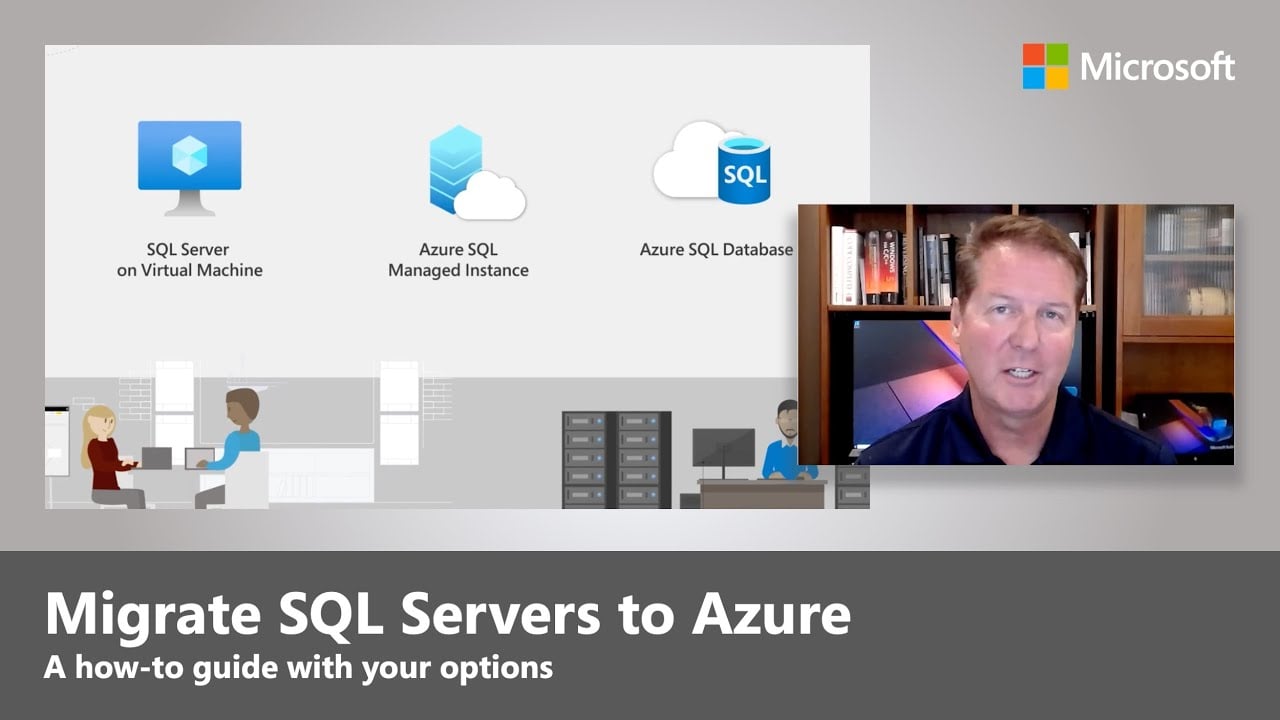
Now that we've laid out the risks of running an unsupported server, what’s the next move? When you’re staring down an impending Windows Server end-of-life date, you generally have three solid strategies to choose from. Each one strikes a different balance between cost, effort, and what it means for your business in the long run.
This isn't just a technical refresh; it's a strategic fork in the road for your IT. Think of it like this: do you renovate your current office, move to a brand-new building across town, or just patch the leaky roof for another year while you figure things out?
Option 1: Upgrade On-Premises
This is the classic, tried-and-true approach. It means replacing your old server's operating system with a modern, fully supported version like Windows Server 2022. Usually, this is done as a "clean install"—you set up the new server environment from the ground up and then carefully move your data and applications across.
The big advantage here is control. You keep your hardware on-site, which is non-negotiable for some businesses with specific compliance or data sovereignty needs. It's a familiar process for most IT teams and a straightforward, like-for-like replacement.
Option 2: Migrate to the Cloud with Microsoft Azure
The second path is to step away from physical, on-site servers completely. By migrating your workloads to Microsoft Azure, you're essentially moving your server operations into Microsoft's vast, secure global data centres. This is less like renovating and more like moving into a state-of-the-art managed office block.
This move flips your server costs from a hefty upfront investment to a predictable monthly bill. Azure also brings incredible flexibility to the table, letting you scale your resources up or down as needed. Plus, things like disaster recovery and advanced security are built right in.
Option 3: Use Extended Security Updates as a Bridge
Your final option is to buy Extended Security Updates (ESUs) from Microsoft. Let’s be clear: this isn't a permanent fix. It's a temporary lifeline that allows you to keep receiving critical security patches for your EOL server for up to three years, buying you more time to plan a proper migration.
Think of ESUs as hiring a temporary security guard because your main security firm's contract has run out. It keeps you safe from immediate threats, but it doesn’t modernise the building or fix any of the deeper problems. And the cost goes up every year, giving you a powerful nudge to move on.
This route is really for businesses with complex, legacy applications that just can't be moved before the deadline. It buys you precious time, but it comes at a steep—and escalating—price.

As the flowchart shows, the choice is clear. Planning ahead leads to a secure, stable future. Waiting? That just opens the door to risk and uncertainty.
Comparing Server Migration Options
To help you see how these choices stack up, we've put together a simple comparison table. Weighing your options properly also involves the effective management of end-of-life IT equipment to ensure old hardware doesn't create new problems down the line.
| Migration Path | Best For | Initial Cost | Long-Term Security | Complexity |
|---|---|---|---|---|
| Upgrade On-Premises | Businesses needing physical control or running specific hardware-dependent apps. | High (Hardware + Software Licences) | Excellent (With proper patch management) | Moderate |
| Migrate to Azure | Businesses seeking scalability, flexibility, and reduced hardware management. | Low (Pay-as-you-go model) | Excellent (Managed by Microsoft) | High (Requires cloud expertise) |
| Use ESUs | Organisations with complex legacy systems needing more time to migrate. | Moderate to High (Annual subscription) | Good (Security patches only) | Low (Maintains status quo) |
At the end of the day, the right path is the one that aligns with your specific business needs, budget, and future goals. An on-premises upgrade gives you control, Azure offers modern flexibility, and ESUs provide a crucial, if temporary, breathing room.
A Practical Checklist for Your Server Migration

A server migration can feel like a mammoth task. The secret to making it manageable is breaking it down into smaller, logical steps. A clear, well-thought-out plan turns a stressful project into a structured process, ensuring a smooth transition with minimal disruption to your business.
Think of this checklist as your roadmap. By following a clear sequence, you'll sidestep common mistakes and make sure every critical detail is handled before, during, and after the move. This methodical approach is really the key to a successful migration that hits its deadlines and stays on budget.
Phase 1: Pre-Migration Planning
Before you touch a single server or move a single file, you need a crystal-clear picture of your current setup and a solid vision for where you're heading. This foundational stage is where migrations are won or lost.
-
Perform a Full Inventory: You can't migrate what you don't know you have. Start by documenting every server, application, and dependency. It's vital to note which departments rely on which services and flag any custom-built software that might need special attention.
-
Test Application Compatibility: This is a big one. You must confirm that your essential business applications will actually run on the new operating system or cloud platform. Discovering an incompatible program late in the game can derail the entire project.
-
Choose Your Migration Path: Armed with your inventory and compatibility tests, you can decide on the best strategy. Will you upgrade your on-premises servers, shift to Azure, or maybe take a hybrid approach? This decision dictates every step that follows.
-
Build a Detailed Project Timeline: Create a realistic schedule with specific milestones and deadlines. Assign clear responsibilities to everyone on the team and, if possible, schedule the final migration during a quiet period, like a weekend, to minimise business impact. For a more in-depth look at planning, this ultimate data center migration checklist is a great resource for managing large-scale IT moves.
Phase 2: Execution and Post-Migration
With a solid plan in place, it’s time to move into the execution phase. This is where all that meticulous preparation pays off, ensuring a smooth transition and keeping your data safe.
A migration isn't just about moving data; it's about safeguarding your business's continuity. A comprehensive backup is your non-negotiable safety net, turning a potential disaster into a recoverable inconvenience.
First things first: back up everything. Before you start, perform a full, verified backup of all your data, applications, and server configurations. This is single-handedly the most important step for protecting your business. A reliable backup is also a cornerstone of any decent IT disaster recovery plan.
Next, run a pilot migration. Before you flip the switch on everything, move a non-critical application or a small batch of data. This trial run is brilliant for catching potential issues in a low-risk environment, letting you fine-tune your process before the main event.
Finally, you can execute the full migration according to your timeline. Once the new system is up and running and has been thoroughly tested, you can begin the process of decommissioning the old hardware. Make sure all data is securely wiped from the old servers before you dispose of or repurpose them. This final step officially closes the project and secures your new infrastructure for the future.
Got Questions About Server EOL? We’ve Got Answers.
When it comes to Windows Server end of life dates, a few common questions always pop up. Let's get them answered so you can plan your next steps with total clarity.
Can I Keep Using a Server After Its End of Life Date?
Technically, the server will still switch on and run your applications. But just because you can doesn't mean you should.
Running an EOL server is a massive gamble. Once Microsoft stops releasing security updates, your system becomes a sitting duck for cyberattacks. Any new vulnerability that gets discovered is a wide-open door for hackers, and you'll have no way to patch it. This also puts you in hot water with compliance standards like GDPR.
Think of it like driving a car that’s been recalled for a major safety fault. It might get you from A to B for a while, but you’re risking a catastrophic failure with no support from the manufacturer when things go wrong.
So, the real question isn’t "Can I?" but "Should I?" When it comes to protecting your business and your data, the answer is always a hard no.
How Much Do Extended Security Updates Cost?
Extended Security Updates (ESUs) are a temporary lifeline, not a permanent solution, and they come with a price tag that reflects that. The cost is usually a percentage of the original server licence fee, and it gets more expensive each year.
The pricing is designed to make you migrate, not stick around. Here's a typical breakdown:
- Year 1: Expect to pay around 75% of the full licence price.
- Year 2: The cost jumps to 100% of the licence price.
- Year 3: It increases again, to 125% of the licence price.
This structure makes it clear that ESUs are a stop-gap measure while you move to a newer, fully supported system.
How Long Does a Server Migration Usually Take?
There's no one-size-fits-all answer here; it really depends on how complex your setup is. For a small business with a couple of servers running standard software, you could be looking at a four to eight-week project from start to finish.
However, if you're a larger company with complex, custom applications, multiple servers, and huge amounts of data, the timeline could easily stretch to three to six months, sometimes longer.
The most important thing is to start the process well in advance. A rushed migration is a recipe for data loss, costly downtime, and a whole lot of stress. Planning ahead gives you the breathing room to get it right.
Thinking about your server migration can feel overwhelming, but you're not on your own. HGC IT Solutions offers expert, hands-on support to guide your business through a seamless transition to a modern and secure setup. Contact us today to secure your IT future.
